When a QDK user includes a library in a game, it can add elements to the QDK windows. Categories can be added to the Script Command Editor, and panes for extra information can be added to the object, room and game editing screens.
A library interface description section of a library file needs to begin with the line "!QDK" and end with "!end". You can actually add extra characters after these lines, if you wish, to separate this section visually in your library code. For example:
!QDK ========================================================================

(interface data goes here)

!end ========================================================================
As well as the standard !library and !asl-version tags at the top of the library, you can add extra tags so that QDK can display the name of your library, its version and the author:
!name <library name>
Specifies the name of the library. This is what will be used in the list of libraries in QDK. If this is not specified then the library filename is used instead.
!version <version number>
Specifies the version number of the library.
!author <author name>
Specifies the name of the author of the library.
! comments
Put any comments after an exclamation mark and a space. This will appear in QDK's library information box when the library is selected on the Libraries window.
Here's an example library header:
!library
!asl-version <400>
!name <Example Library>
!version <1.0>
!author <Alex Warren>
! This is just a test library. These words will appear in QDK
! to give information to users about what this library does,
! and how to use it.
You can add categories to the Script Command Editor with additional "commands" in them, and these will be translated into calls to procedures. Here is an example that defines a "Funky Library" category with two "commands" in it:
script <Funky Library>
        command <Detonate bomb object; detonate>
                parameter <Bomb object; objects *This is the object to blow up>
                display <Detonate "|cl$1|cb">

        command <Write graffiti; graffiti>
                parameter <Write on object; objects *This is the object to write on>
                parameter <Text; text *This is the text that will be written on the object>
                display <Write "|cg$2|cb" on "|cl$1|cb">
Note there is no "end script" or "end command" - the "command" tag applies to the category defined above it, the "parameter" tags to the command defined above them, etc.
The parameter of "script" specifies the name of this category to display on the Script Command Editor.
The command tag takes two parameters - the first is the title of the command as displayed in the Script Command Editor, and the second is the name of the procedure that this "maps" to. In our example, "Detonate bomb object" refers to the "detonate" procedure, and "Write graffiti" refers to the "graffiti" procedure.
For each command you need to specify the number of parameters it takes, and how to display this command outside of the Script Command Editor. The parameter tag takes two parameters and an optional tooltip - the first parameter is the prompt, and the second is the parameter type. A parameter type of "objects" will display a drop-down list of objects, and "text" will be a simple text box. The valid types are:
| parameter type | displays |
|---|---|
| text | a simple one-line text box |
| bigtext | a large multi-line text box which fills the parameter box on the Script Command Editor (useful for large passages of text) |
| textblocks | a list of text blocks |
| procedures | a list of procedures |
| menus | a list of menus |
| rooms | a list of rooms |
| objects | a list of objects |
| objsrooms | a list of objects and rooms |
| timers | a list of timers |
For each parameter you can optionally specify a tooltip to display when the user hovers the mouse over it. You can specify a tooltip using the asterisk character "*", followed by the tooltip text to display.
Next, the display tag specifies how this command is displayed within a script. The parameter consists of a string with additional formatting codes. You can use the same string formatting codes as you can use in Quest. To be consistent with the style normally used, you should use green for strings of text and blue for the names of things such as objects. $1, $2 etc. are placeholders for the values of parameters 1, 2 etc.
In our example for the "graffiti" procedure, our display string is
Write "|cg$2|cb" on "|cl$1|cb"
If the user has entered or selected "wall" at the "Write on object:" prompt, and typed in "anarchy" at the "Text:" prompt, this will display:
Write "anarchy" on "wall"
with "anarchy" in green text and "wall" in blue text.
Formatting codes are stripped out on the Script Editor window, and the above text would appear entirely in black.
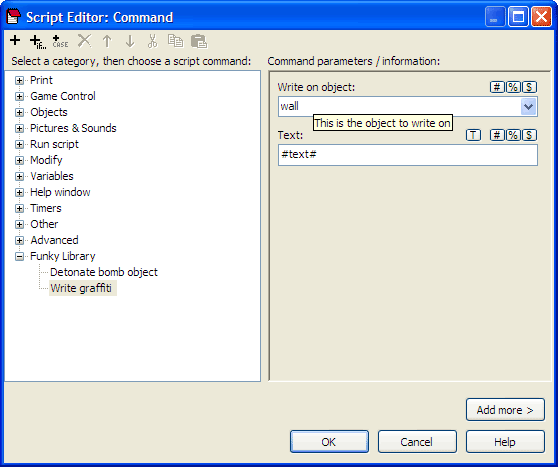
Here's an example of what the author will see. Let's say the author has included this library in a game, and now wants to add a command that allows the player to write graffiti on a wall. The author goes to set up the command by selecting Commands from the tree menu and adding the command "write #text#". They now click Edit to edit the script that will be run when the player types in this command. As this library has been included in the game, the author will see that a "Funky Library" category has been added to the commands list. When the game author selects this category and selects the "Write graffiti" command, they will see a screen like that shown below, where they might fill in the parameters as shown. In this screenshot, the mouse is hovered over the "Write on object" box, to demonstrate the tooltip:
When they click OK, the command editing screen now looks like this:
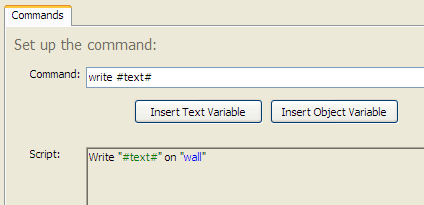
When this is saved, the following line will appear in the game definition block of this ASL file:
command <write #text#> do <graffiti(wall; #text#)>
As far as the game author is concerned, they accessed the graffiti-writing routine just as they would access any other script command - but this time, this "script command" is actually referring to a call to a procedure, but it is a procedure that the game author does not need to know how to call. By adding a declaration for QDK interface elements to our library, we have eliminated the need for the game author to trawl the documentation to get to grips with special code, and we have therefore not made the game editing process any more complicated.
Interface elements on the object, room and game editing screens map to corresponding properties, actions and types for the object, room and game definition blocks.
You can add a pane to the object, room or game editing screens as in the following examples:
object <Food>
        property <&Tastes nice; tasty>
        property <&Flavour description; flavour; text>
        action <&Eat script; eataction>

room <House Rooms>
        type <Living room; livingroom>
        type <Dining room; diningroom>
        type <Bedroom; bedroom>
        type <Bathroom; bathroom>
        type <Kitchen; kitchen>
        property <Size (sq.ft.); size; text>

game <Things>
        property <Player's favourite thing; fave; objects>
These examples add a "Food" pane to the object properties window, a "House Rooms" pane to the room properties window and a "Things" pane to the game properties window.
As with script categories there is no "end room" or similar - properties, types and action apply to the pane defined above the tag.
Property tags take either two or three parameters. If two parameters are specified, this interface element corresponds to a boolean property ("something", "not something") and a checkbox appears. The first parameter specifies the prompt to display on the window (the ampersand "&" character specifies a mnemonic - in our object pane example, the user can press Alt+F to edit the "Flavour description" - "F" being the character that appears immediately after the "&"). The second parameter specifies the name of the property that this interface element maps to.
If there is a third parameter, this specifies that this property is one that takes a value, and this third parameter specifies what type it is. It can be any of the same types that can exist in the script "parameter" tag e.g. "text", "objects", "objsrooms" - see above.
Here, the first parameter is the prompt to display (which can again contain a "&" for a mnemonic) and the second parameter is the name of the action that this corresponds to.
Again the first parameter is the prompt to display, and the second is the type name that it corresponds to. This will appear on the window as a checkbox.
The order that the various property, action and type tags appear in is the order in which the various interface elements will appear on the interface.
Here's an example which adds a pane to the Object Properties window:
object <Beverage>
        type <&Alcholic drink; alcoholic>
        type <&Carbonated; fizzy>
        property <&Volume (ml); volume; text>
        action <&Drink script; eataction>
When this library is included in QDK and the author goes to the Object Properties window, they will be able to select a "Beverage" pane, which looks like this:
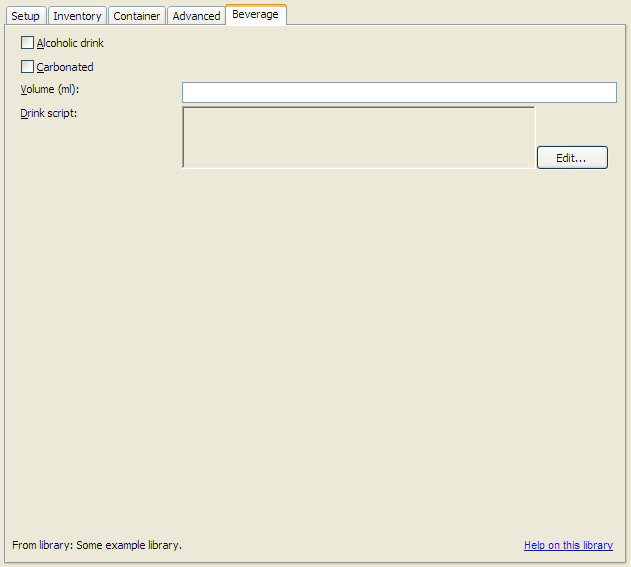
By filling in the relevant details, the "alcoholic" type could be set, the "volume" property could be given a value, etc., for this object. Again, the author doesn't need to know that to make an object be a carbonated drink, they need to set it to be of type "fizzy", so we have opened up the power of our library to QDK users without requiring them to know the names of the properties, types and actions that are used by it. We have made using our library as intuitive as possible, so that using its features is no different to using any of Quest's built-in features.